
Filer Usecase
Every New Draft, Already a PDF
A Filer folder agent notices a new document, converts it to PDF on its own, and leaves a clean, shareable file sitting right next to the original.
- File event
- Chat
- Right-click
What you get
Notes, drafts, and write-ups end up in whatever format was fastest to write in — Markdown, HTML, a Word document. Sharing one outside the team means opening it, exporting it to PDF by hand, and doing that again every time the draft changes.
Point a Filer folder at where those drafts land instead. Its agent watches the folder, and when a document shows up, it converts it to PDF on its own — no office suite, no export dialog, no reminder to do it before sending the file on.
How to do it
Screenshots below are from a real run, using a placeholder notes file in place of a real document.
Needs: the document-converter plugin, installed from Connect.
What it needs
- A Filer folder with a trust level that allows file-triggered runs to write a new file
- The document-converter plugin, installed from Connect (docx, Markdown, HTML, and plain text in; PDF, HTML, Markdown, or plain text out)
- Nothing else — no inference endpoint is needed for the conversion itself, only for the chat/trigger paths that call it through a model
Try it yourself
Download sample files for this walkthrough and follow the steps below on your own computer.
- your-folder — a status update to ask about in chat
- add-these-later — the weekly notes used on this page; dropping them in is what makes the folder convert them
- instructions.txt — the folder's one-line instruction, the same text as below
A folder with one line of instruction
A one-line instruction on the folder is all it takes — no workflow builder, no separate automation tool to configure, and no need to know what the conversion tool is called:
Instruction
When a new Markdown (.md) file is added to this folder, convert it to a PDF with the same name, saved next to it in this folder.
Drop in a new draft — it converts on its own
A new notes file lands in the folder. Nobody opens Filer or asks it anything: the file arriving is the trigger, and the Activity view shows the one run it started and the conversion it made.
A finished PDF, sitting next to the original
No export dialog, no office suite — the converted file just shows up alongside the source, ready to share.
The screenshots and outputs on this page come from a real run of Filer, not a mockup.
Where else this applies
The mechanism generalizes to any folder where documents arrive in a working format but need to leave in a shareable one:
- Meeting notes folder — every recap written in Markdown becomes a PDF ready to send, without anyone opening an editor's export menu.
- Policy or spec drafts — a document written or exported as HTML gets a signature-ready PDF the moment it's finalized.
- Mixed Word-doc archive — normalize a folder of old .docx files down to plain text or Markdown for search or migration, one file at a time.
- Send the PDF on, automatically — add the folder's Email, Notion, or Telegram plugin and have the agent share the freshly-converted PDF the same moment it finishes writing it, instead of stopping at the file.
Other ways in
- Right-click
- Chat
- Other automation triggers
- The walkthrough above shows the folder converting a new draft on its own. You can also just ask in the folder's chat — "Convert status-update.md to PDF, saved next to it in this folder." — and get the same result. There's a third way too: right-click any
.docx,.md,.html, or.txtfile and chooseConvert to...to pick a target format on the spot. All three paths — trigger, chat, right-click — call the same underlying tool. - Other integrations
- Not shown in this walkthrough.
More usecases
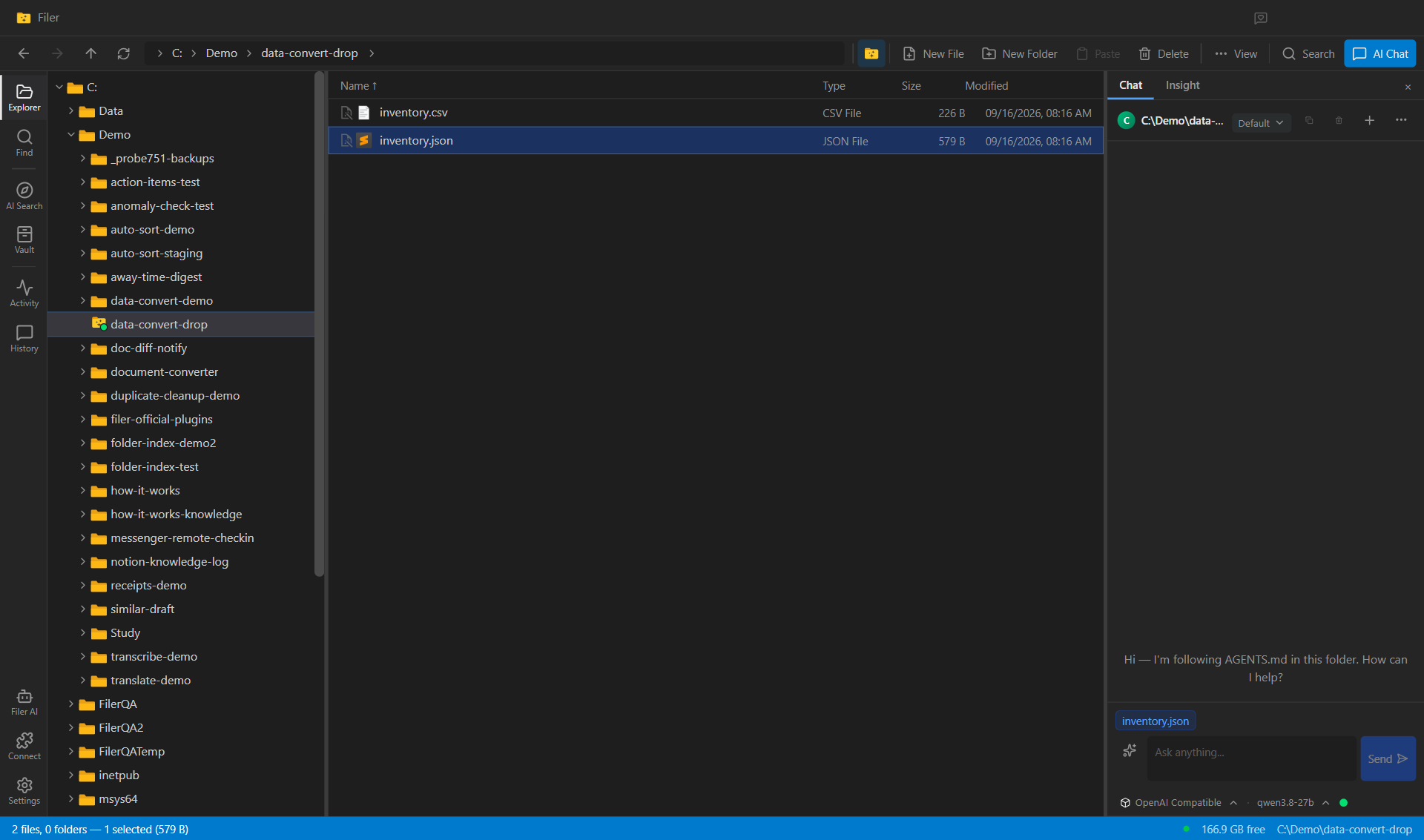
Drop a CSV, Get the JSON
A Filer folder converts every data file that lands in it to the format the next system needs — on the folder's own instruction, with the original left untouched and nothing uploaded anywhere.
- File event
- Chat
- Right-click
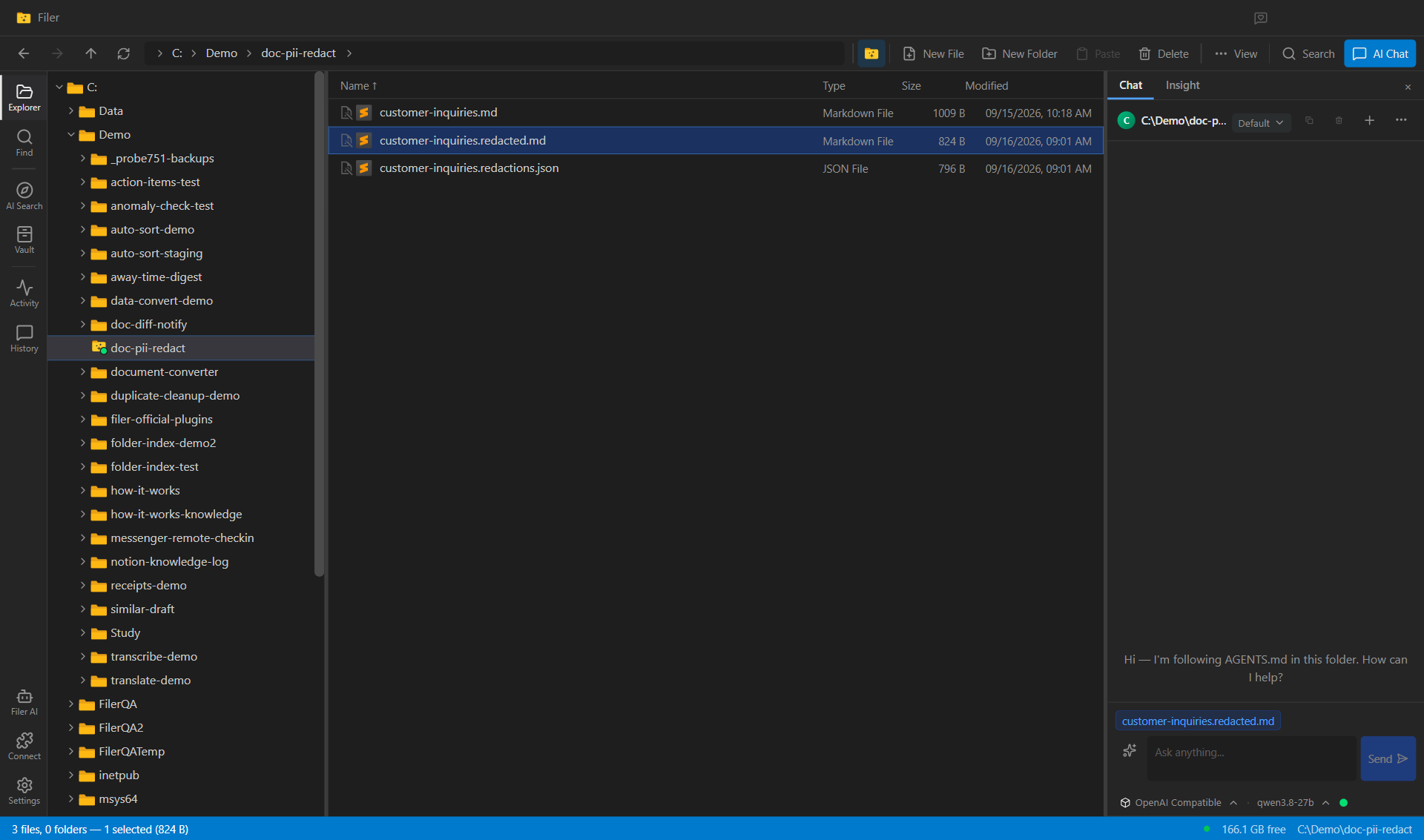
A Redacted Copy of Every Document That Lands in the Folder
A Filer folder replaces the names, phone numbers, e-mails, addresses, ID and account numbers in a document with typed placeholders — a redacted copy next to the original, the original untouched, nothing uploaded anywhere.
- File event
- Chat
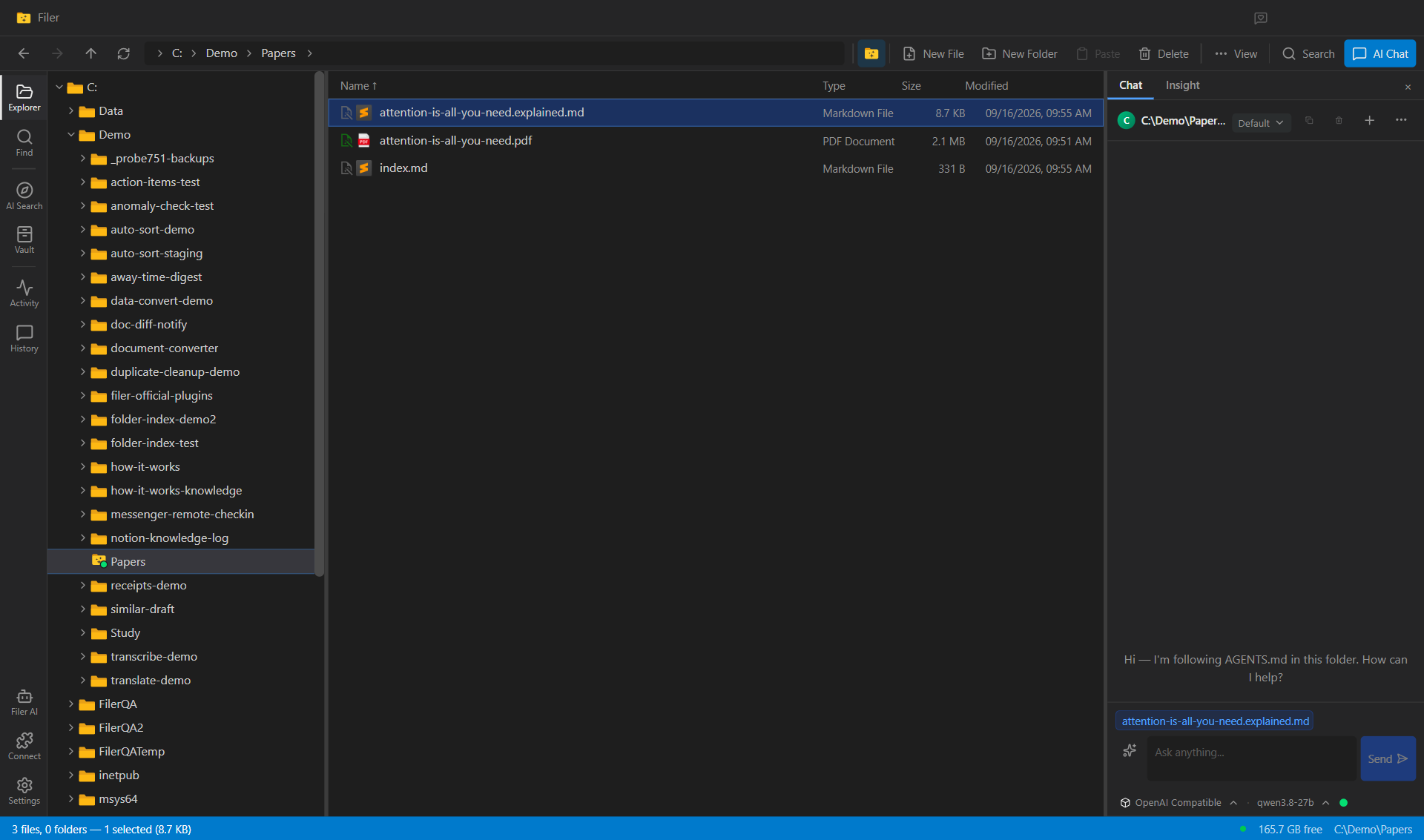
A Three-Level Explanation for Every Paper That Lands in the Folder
A Filer folder reads each research paper you drop in and writes an explanation next to it — for a ten-year-old, an undergraduate and a fellow researcher — plus five key terms and the one question the paper answers. The paper is untouched and nothing is uploaded.
- File event
- Chat